SpeedRunners 2 Controls: Keyboard, Controller and Remapping
SpeedRunners 2 controls explained: gameplay remaps but menus do not, the numpad keybind conflict to avoid, and controller notes — verified facts only.
FAQ
Can you remap controls in SpeedRunners 2?
Why do my numpad keys open menus in SpeedRunners 2?
Does SpeedRunners 2 have controller support?
What inputs does SpeedRunners 2 actually use?
Controls are the quiet make-or-break of a competitive platformer — and SpeedRunners 2’s launch week came with one genuinely important remapping caveat that every player should know before touching the settings screen. This page covers what is verified about keyboards, controllers and rebinding, and links the practice routines that make the inputs automatic.
The One Fact That Matters: Gameplay Remaps, Menus Don’t
The developer confirmed on September 4 (Steam community discussion):
- Gameplay actions are remappable — jump, grapple, slide, items and friends can all move to your preferred keys.
- Menu controls currently are not remappable — a limitation, with a future change “being discussed, not promised.”
Practical consequence: plan your layout assuming menu bindings stay exactly where they are.
The Numpad Trap
The most-reported binding issue of launch week: gameplay actions bound to the numpad can also fire training-menu shortcuts — so your carefully-bound grapple opens a menu mid-race. This is the collision of the two facts above: your gameplay bind moved to the numpad; the menu shortcut sitting on that key didn’t move and can’t be moved.
The fix pattern:
- Screenshot your current bindings before changing anything — with menus unremappable, you want a record of what you moved.
- Keep gameplay actions on letter keys near your movement hand.
- Change one bind at a time and test in training or a bot race — an action should move your runner and only move your runner.
The Confirmed Action Set
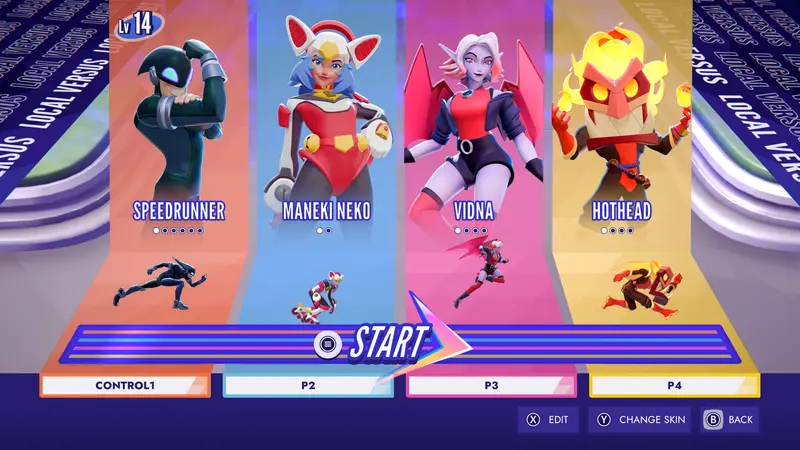
What the game asks your hands to do, per official sources:
| Action | Where it is confirmed |
|---|---|
| Run / Jump / Slide | Core movement — store description, tutorials |
| Grapple | The signature input — movement guide |
| Tackle | Contact attack — the “Get Out of My Way” achievement tracks 10 tackles |
| Item use / throw | Pick-up combat — the pick-ups guide |
| Golden Hook | A pick-up action, not your movement grapple — its own page |
Controller Notes
On console, controllers are the native input, period. On PC, the store listing carries no explicit controller tag in what we have verified, so test before a party. Two launch-window notes worth knowing: some players report missing button prompts in places (a polish item, patch-likely), and mixed keyboard/controller households should test everyone’s setup in a bot race before the party starts. The friends guide has the full session-checklist.
When Controls Feel Wrong: The Debug Order
- Test inputs in free play or a bot race — if jump and grapple are reliable outside the lesson, your bindings are fine (this is step one of the Reverse Grapple checklist too).
- Check for the numpad conflict above.
- Rule out hardware — a flaky key or a controller with drift imitates a game bug perfectly.
- Only then suspect the game — and if it reproduces, report it through the official channels in the troubleshooting guide.
Related Pages
- Reverse Grapple — the checklist in full, plus the technique’s history
- Tutorials guide — the input checks before lesson retries
- Movement techniques — what good inputs become
- Troubleshooting — when the problem isn’t the bindings
Related Articles
SpeedRunners 2 Guides
SpeedRunners 2 Reverse Grapple: The Lesson, the Technique, the Legacy
The Reverse Grapple is SpeedRunners 2’s hardest tutorial lesson — the input checks, the technique’s original-game roots, and what is verified about clearing it.
SpeedRunners 2 Guides
SpeedRunners 2 Secret Achievements: The Four Hidden Map Secrets
SpeedRunners 2 hides four achievements — one secret per map: Museum, Metro, Casino and SS Royale. What Steam’s own data confirms, and where the gem hunt stands.
SpeedRunners 2 Maps
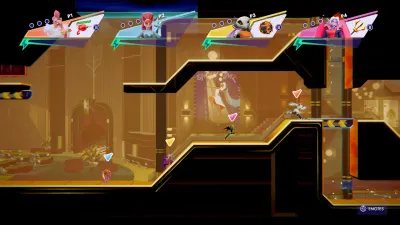
Casino Map in SpeedRunners 2: Layouts and the Royal Flush Trail
Casino returns in SpeedRunners 2, confirmed by the live build’s own data — an Expert-tier course in the original game. Layouts, theme, and the Royal Flush secret.
Next up
SpeedRunners 2 Movement Guide: Grappling, Sliding and Slope Jumps
Know the buttons? Now chain them — swings, slides and slope jumps.
Was this helpful?
Thanks for the feedback!